Manage Your Complaint
Track a submitted formal complaint, open it in Docket 360, and see what happens while PRC staff review it.
The Tier 1 or Tier 2 user who submitted the complaint.
Open Your Complaint
-
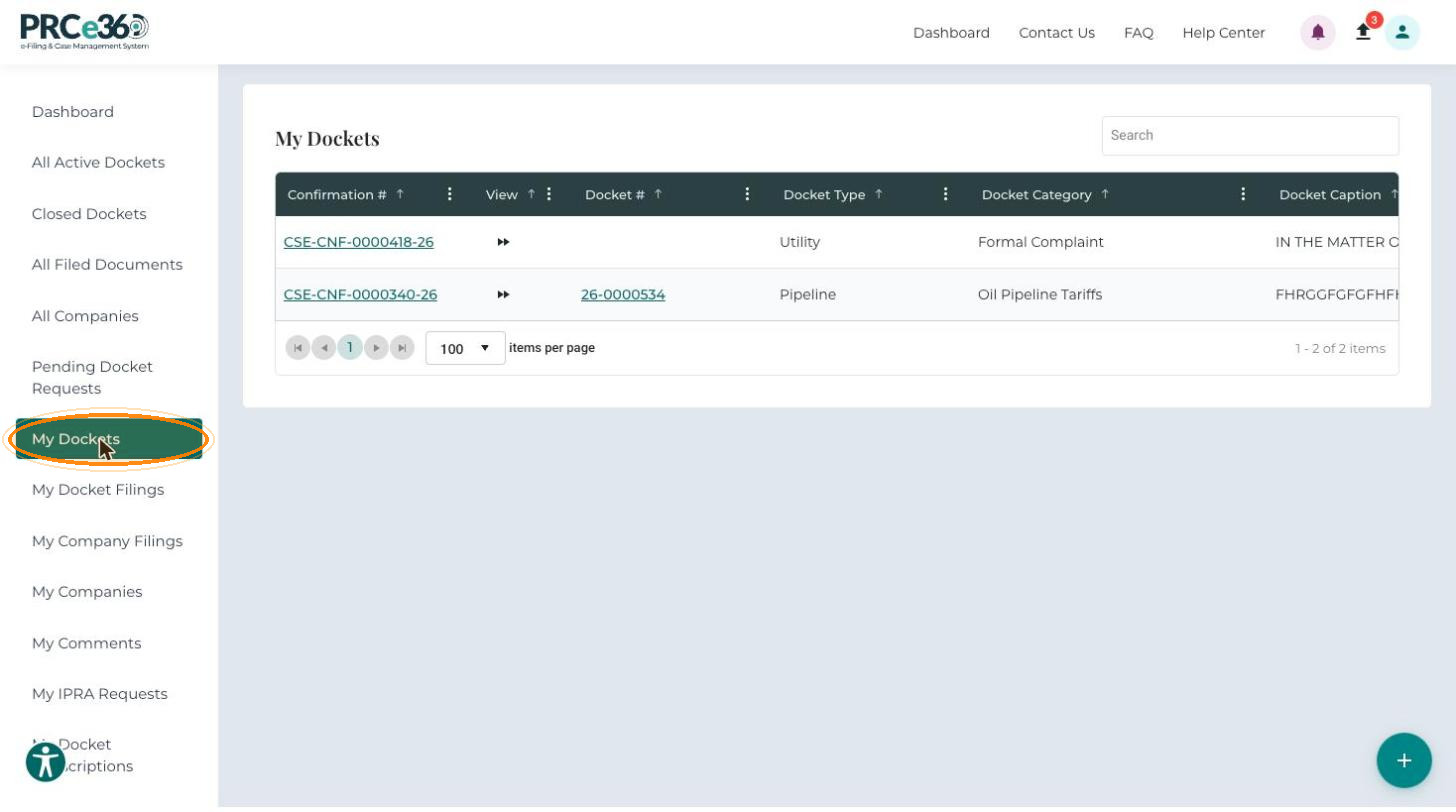
On the Dashboard, click My Dockets.
-
Find your complaint. Its Docket Category is Formal Complaint, and its Docket # stays empty until PRC staff accept it. Click its Confirmation #.
Columns- Confirmation #
- View
- Docket #
- Docket Type
- Docket Category
- Docket Caption
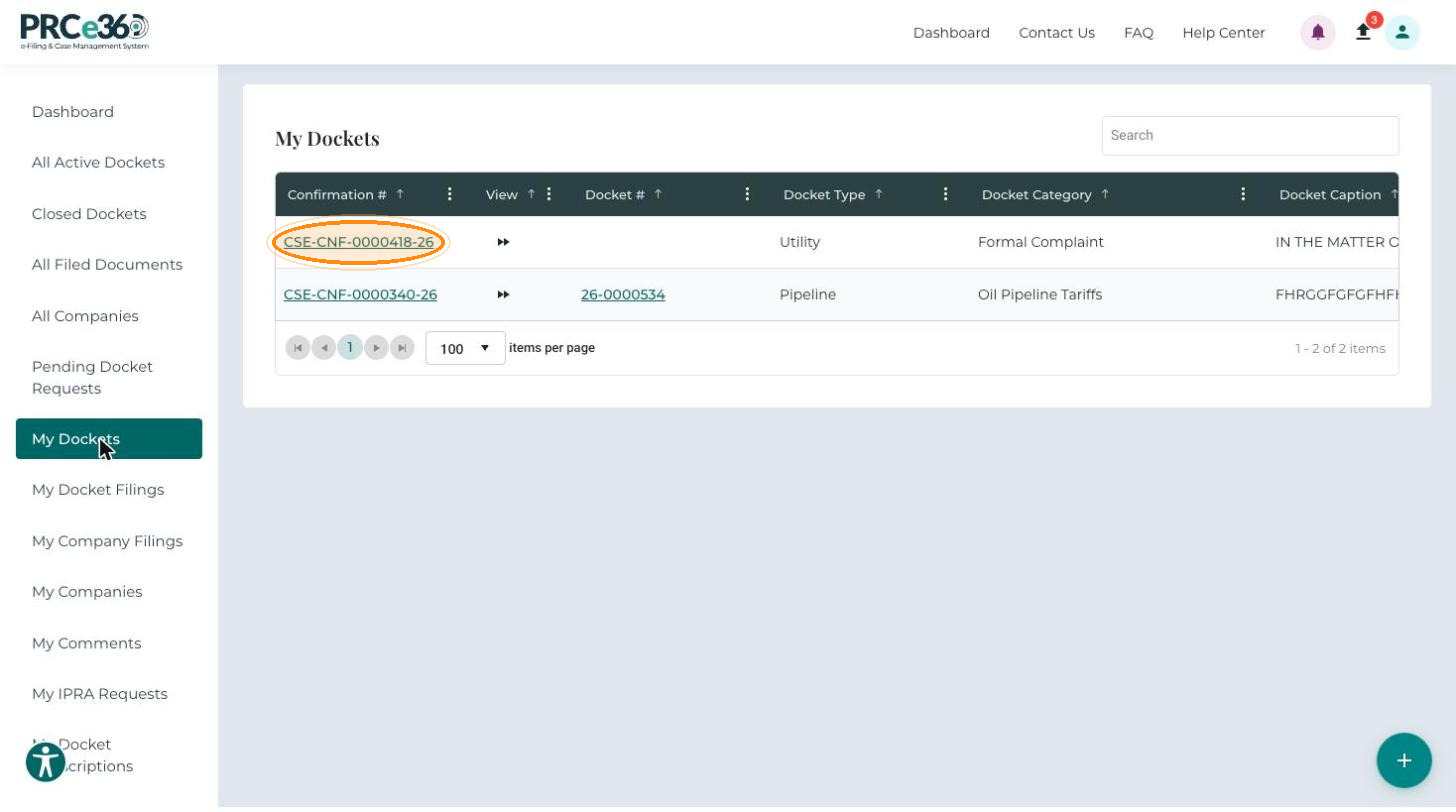
The complaint opens in Docket 360 with the status New. The header shows the Confirmation #, the Company, the Submitted On date and the Filed By name. The Docket Caption is created for you, for example "IN THE MATTER OF THE FORMAL COMPLAINT OF [your name] AGAINST [company]".
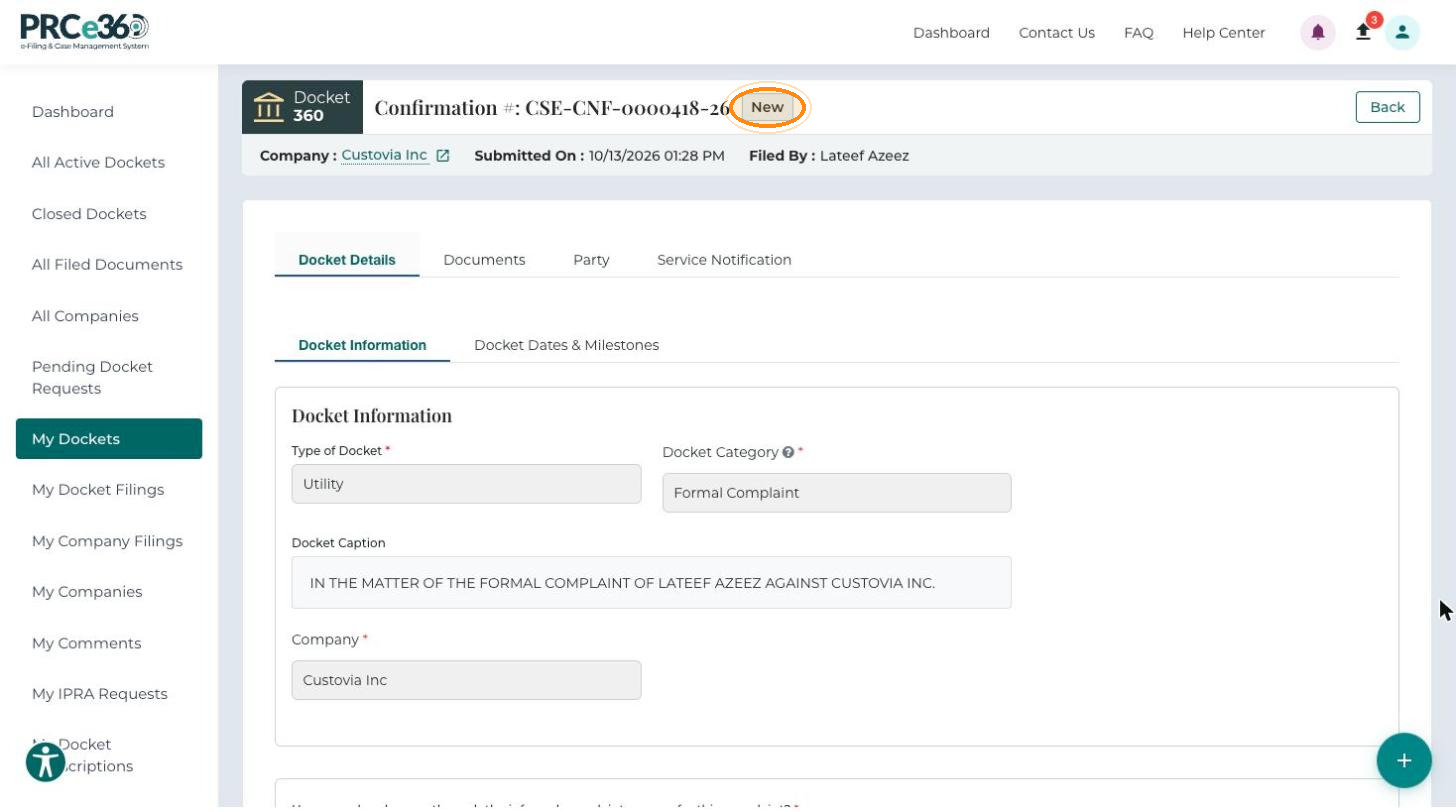
| Tab | What it shows |
|---|---|
| Docket Details | The complaint information entered during submission, under Docket Information and Docket Dates & Milestones. |
| Documents | The documents filed in the complaint. |
| Party | Complainant, respondent and filer details. |
| Service Notification | All users notified about this docket. |
The Comments tab is added once the complaint is accepted as a docket. To return to the list, click Back at the top right.
Complaint Status
| Status | Meaning |
|---|---|
| New | Complaint received and awaiting review. |
| Active | Complaint accepted and docket created. |
| Rejected | Complaint denied. You receive the reason. |
You receive an email when the status changes. Check your spam folder if you do not see these emails.
What Happens After Submission
- You receive a Confirmation Number immediately, and a confirmation email is sent to your registered email address.
- The complaint appears in My Dockets with the status New.
- The complaint is routed to the appropriate PRC division. Staff review it for completeness and compliance, typically within 2-5 business days, and may request additional information.
If Your Complaint Is Accepted
- The status changes to Active and a formal docket number is assigned.
- The complaint appears in All Active Dockets and becomes part of the public record.
- You can file additional documents into the docket. See File Into Formal Complaint.
- Monitor your dashboard and My Dockets for updates, respond to any requests for additional information, and follow the docket through the regulatory process.
If Your Complaint Is Rejected
- You receive an email with the rejection reason, and the status shows as Rejected on your dashboard.
- Review the reason, correct the issues and submit a new complaint with the corrected information.
Common rejection reasons:
- Missing required information.
- Insufficient supporting documentation.
- Information does not meet regulatory requirements.
- The complaint does not fall under NMPRC jurisdiction.
Track Your Complaint
| Where | What you see |
|---|---|
| My Dockets | Status and details. |
| Email notifications | Updates sent automatically. |
| Docket 360 | All docket information. |
| All Active Dockets | The docket in the public queue, once accepted. |
Add More Documents
After your complaint is accepted, you can add more documents:
- Go to My Dockets and find your complaint.
- Use File Into Formal Complaint to add the documents.
New documents appear in the Pleading Documents tab once accepted.
Need Help?
- Status questions: check your dashboard or see Get Help.
- Rejections: review the rejection notice and see Troubleshooting.
- Process questions: contact filing support through Get Help.